Last Updated on August 24, 2026
USB hubs expand your ports so you can connect more devices on the go or at your desk.
I’ve worked with laptops, phones, cameras, and many gadgets for years, so I know the small frustration of running out of ports. This guide explains what USB hubs are, why carry one, and how to pick the right hub for your needs. You’ll get clear definitions, real-life tips from my experience, common use cases, and easy steps to avoid mistakes. Read on to make your tech life simpler and more reliable.
How USB hubs work and why they matter
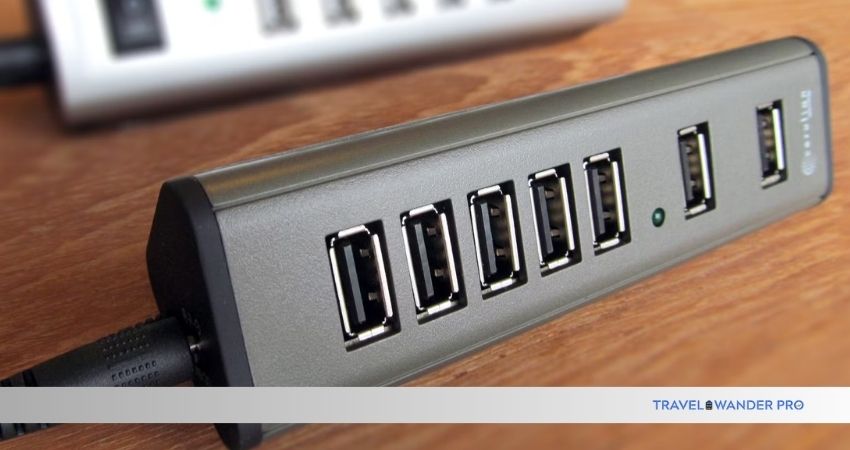
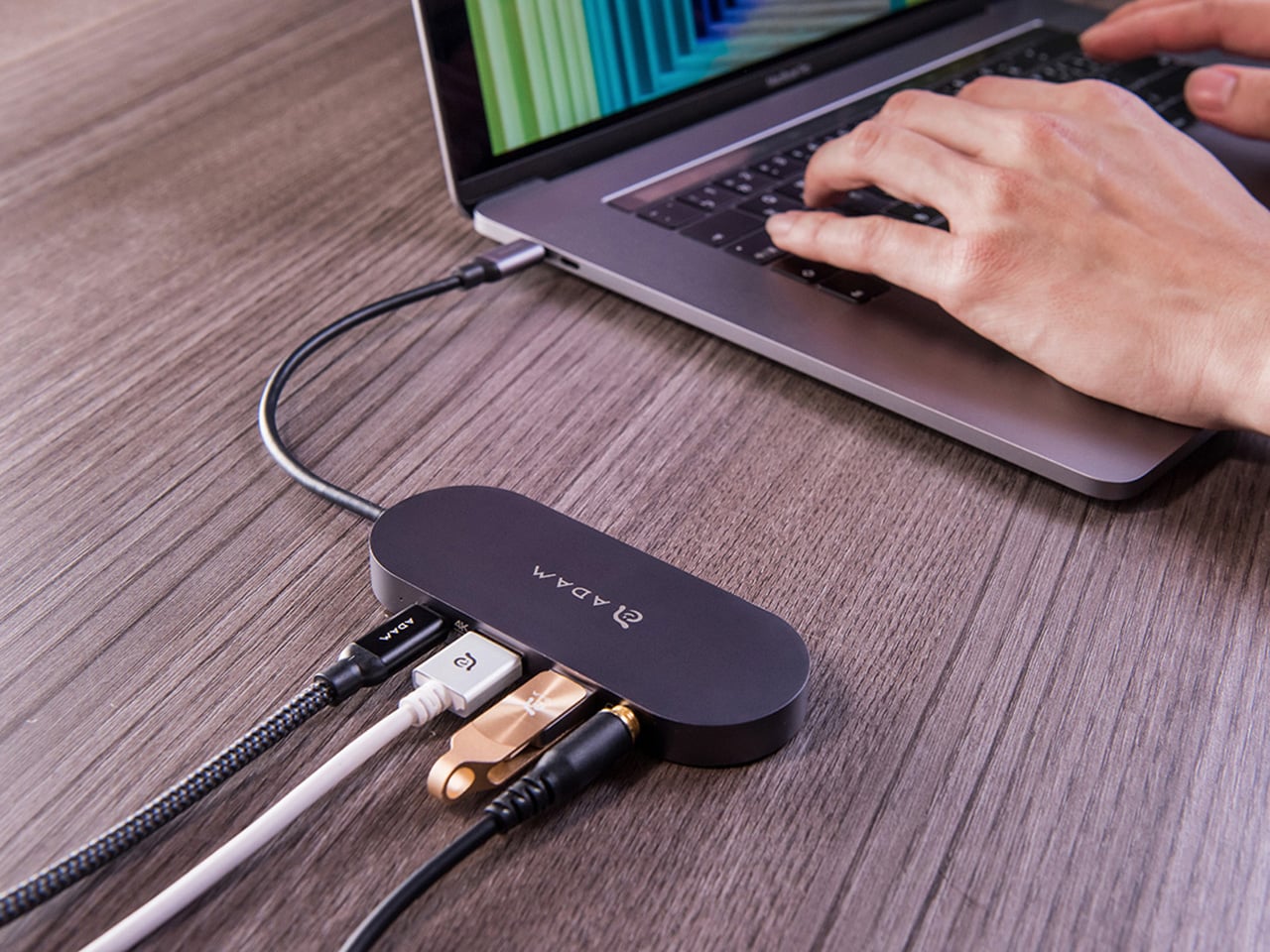
A USB hub is a small device that gives you extra USB ports. It takes one USB connection from your computer and shares it across many devices. Hubs can support data transfer, power delivery, or both. Many laptops ship with only a few ports, and USB hubs fix that problem fast.
Why this matters now:
- Laptops and phones are thinner and have fewer ports.
- We use more gadgets at once, like phones, drives, and mice.
- A hub keeps your workspace tidy and your devices powered.
USB hubs let you do more without swapping cables all day. They save time and reduce wear on your laptop ports.

Types of USB hubs
There are a few main kinds of USB hubs. Each type fits a use case.
- Bus-powered USB hubs
- These draw power from the host computer. They are simple and small. They work well for low-power devices like mice and keyboards.
- Self-powered (powered) USB hubs
- These have their own power supply. They can charge phones and run hard drives. Use them when you need steady power.
- USB 2.0, USB 3.x, and USB4 hubs
- USB 2.0 is slow for big files. USB 3.x and USB4 are much faster. Match the hub speed to your devices.
- USB-C and USB-A hubs
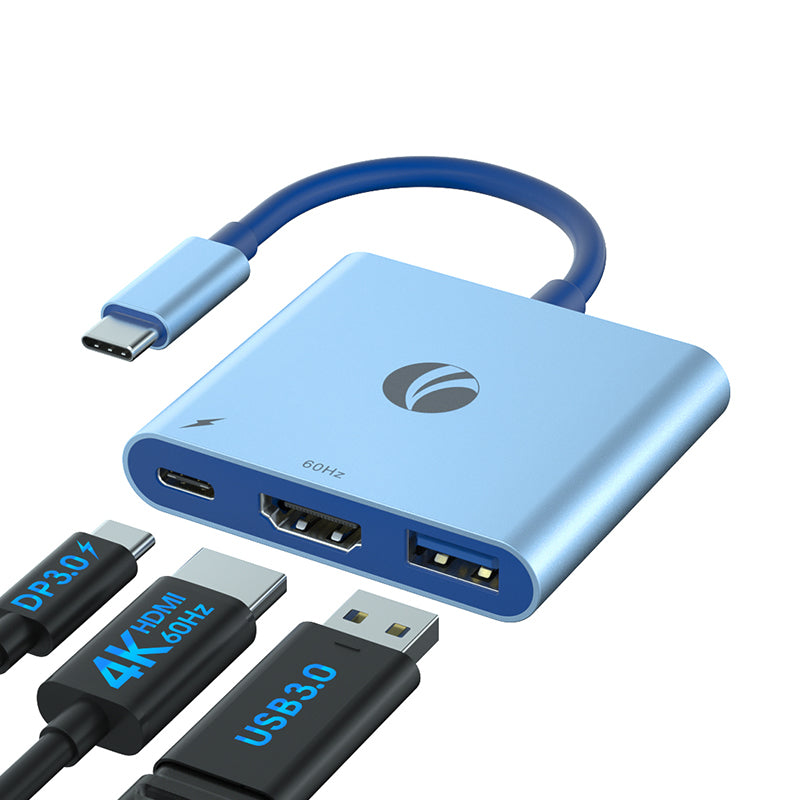
- USB-C hubs often include power delivery and video output. USB-A hubs are common and cheap. Choose based on your laptop ports.
Knowing the type helps you pick the right hub. I recommend a powered USB hub if you connect drives or charge devices often.
Key features to look for
When shopping, focus on a few core features. These matter most in daily use.
- Number of ports
- Get enough for current needs plus one or two extras.
- Port type and speed
- Prefer USB 3.0 or USB 3.2 for fast file transfers. Use USB4 for the fastest lanes and video.
- Power delivery (PD) pass-through
- This lets a hub charge your laptop while you use it.
- Build quality and cable length
- A sturdy case and a short, thick cable last longer.
- Additional functions
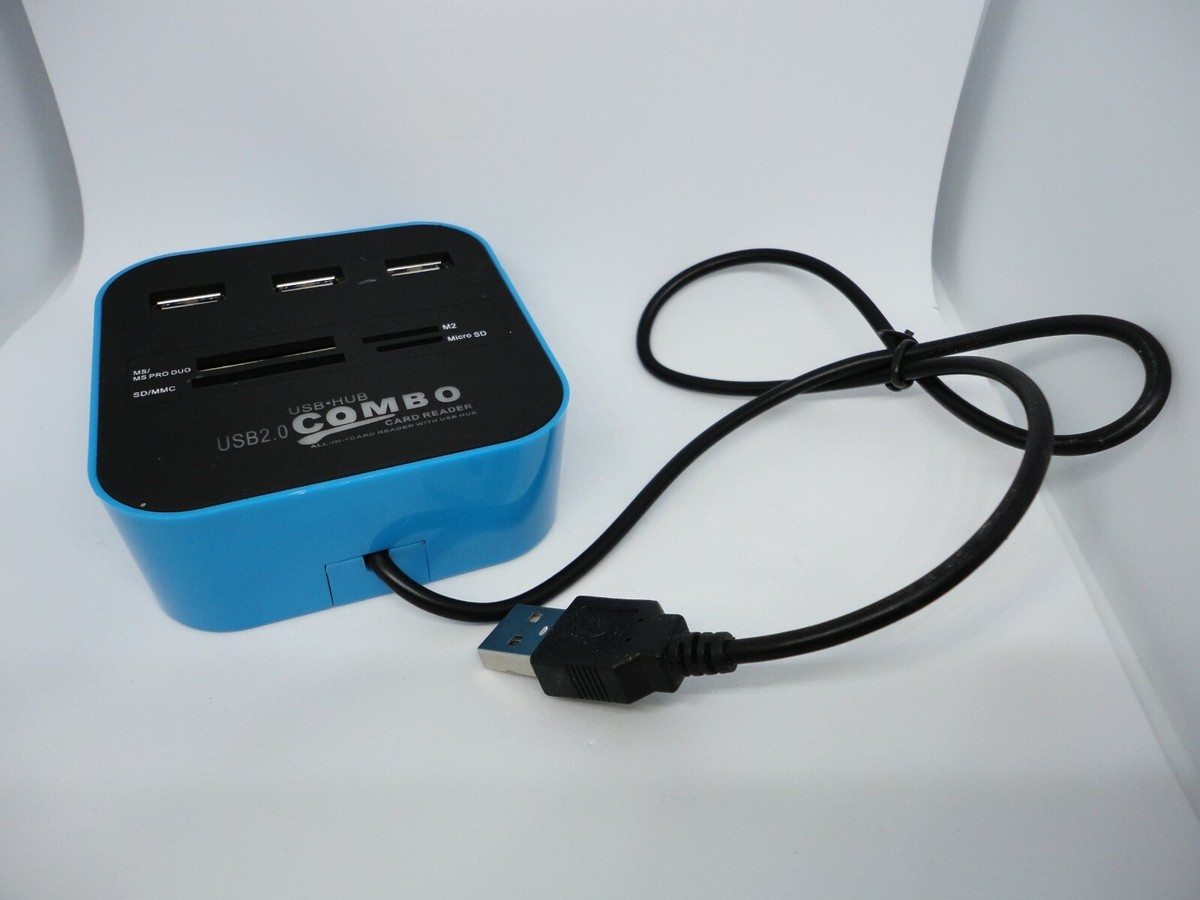
- Some hubs offer HDMI, Ethernet, or SD card slots.
I once bought a cheap hub with weak power. My external drive kept disconnecting. Now I look for power specs and solid reviews.
Why carry a USB hub: benefits and everyday use
A pocket hub or small travel hub can change how you work. Here are the main benefits.
- More ports, instantly
– You can plug in a phone, mouse, and drive at once. - Better charging options
- A powered hub can charge several devices together.
- Cleaner workspace
- One cable to your laptop, many devices to the hub.
- Flexibility on the go
- Shared ports mean fewer adapters to carry.
- Faster file transfers
- A high-speed hub moves big files quicker than Wi‑Fi.
Examples of daily use:
- Working at a cafe with external SSD, mouse, and phone.
- Giving a presentation via HDMI on a USB-C hub.
- Backing up photos from a camera using a card reader on the hub.
Carrying a hub saved me time and stress on trips. It also reduced the chance of losing small adapters.
Limitations and common pitfalls
No device is perfect. Know the limits before you buy.
- Power limits
- Bus-powered hubs can’t run high-power devices reliably.
- Shared bandwidth
- Multiple devices share the same connection. This can slow transfers.
- Compatibility quirks
- Some hubs may not work with certain docking setups or phones.
- Physical size
- Larger hubs are less travel-friendly.
Test a hub with your devices if you can. Read specs closely. Avoid buying only on price.

How to choose the right USB hub: step-by-step
Follow these steps to pick a hub that fits your needs.
- Count your devices
- List what you use daily and what you might add soon.
- Note port types on your computer
- Do you have USB-C, USB-A, or both?
- Decide if you need power delivery
- Choose a powered hub if you charge laptops or run drives.
- Match speed to use
- Use USB 3.x or USB4 for fast transfers or external displays.
- Check size and build
- For travel, pick a compact hub with a short cable.
- Read reviews and warranty info
- Look for real tests with similar devices.
These steps saved me from buying a hub that could not charge my laptop. Do the quick check before you buy.
Practical examples and real-life setups
Here are clear setups you can copy.
- Remote worker setup
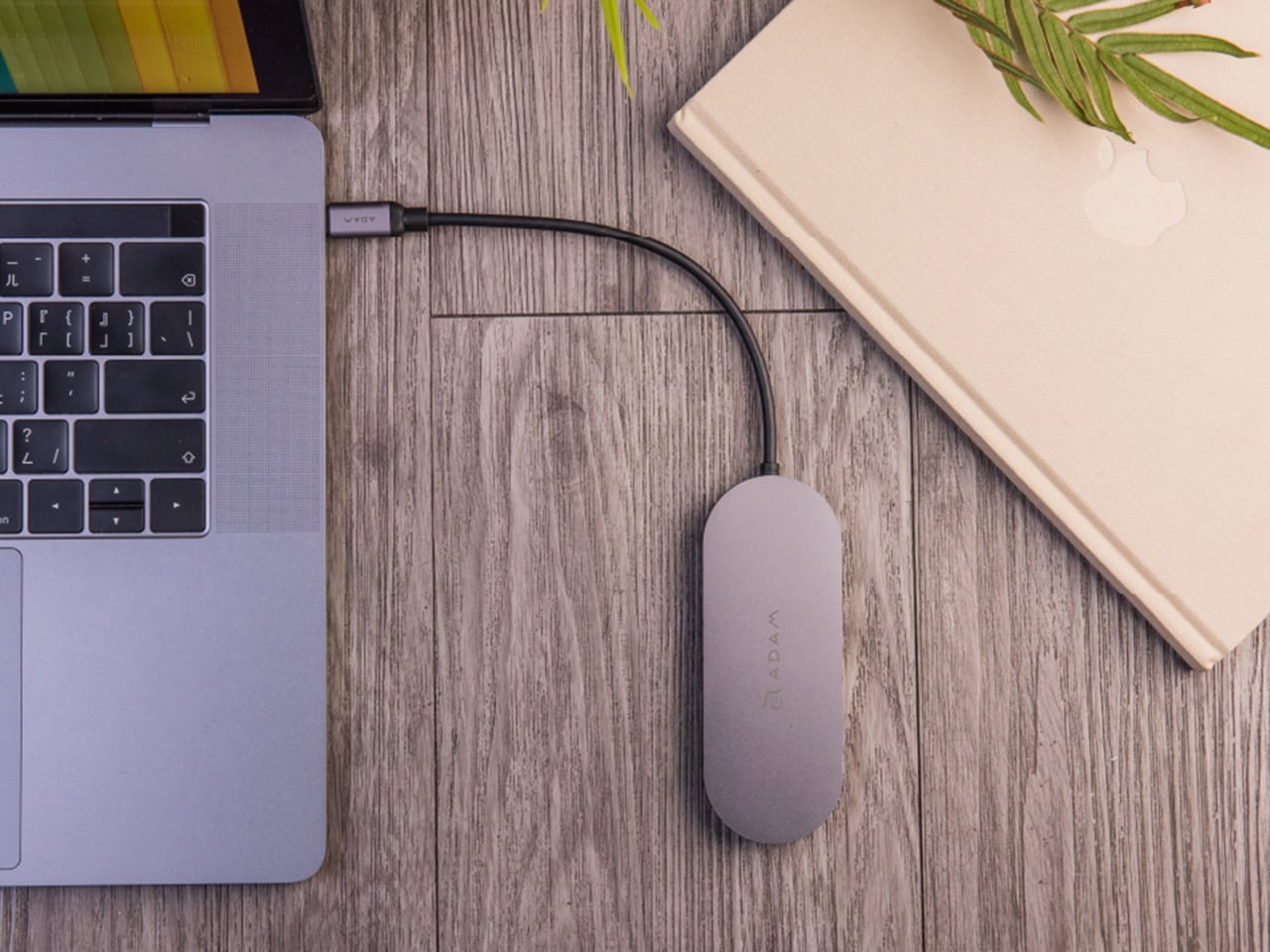
- Laptop + USB-C hub with HDMI, Ethernet, 3 USB-A ports, and PD pass-through.
- Photographer on the go
- USB-C travel hub with SD card reader and USB 3.0 ports for SSD.
- Student setup
- Small USB-A hub for mouse, flash drive, and phone charging.
- Business traveler
- Compact hub with PD and one USB-C port for phone tethering.
Each setup reflects real use. I adjusted mine after a few trips to include PD pass-through and an SD slot.

PAA-style questions (People Also Ask)
What can a USB hub do for my laptop?
- A USB hub adds extra ports for peripherals and can provide power or enable video output when it has the right ports.
Do USB hubs slow down data transfer?
- They can if many devices share the same bandwidth or if the hub uses older USB standards. Use USB 3.x or USB4 hubs to reduce slowdowns.
Can I charge my laptop from a USB hub?
- Only if the hub supports power delivery pass-through with enough wattage. Check the hub’s PD rating against your laptop’s needs.

Personal experience and tips from using USB hubs
I’ve tested several hubs over five years. Here are lessons I learned.
- Always check the power rating
- My external drive needed a powered hub to stay stable.
- Buy one with short cable for travel
- Long cables tangle and add clutter.
- Keep a small powered hub in your bag
- It’s handy for hotels and coworking spaces.
- Use a hub with metal casing for heat dissipation
- Cheap plastic hubs can get warm under load.
These small choices made my setup more reliable. A good hub paid for itself by saving time and failed transfers.
Security and maintenance
Take simple steps to keep your hub and devices safe.
- Use trusted hubs from reputable brands
- Low-cost unknown models may have weak safety features.
- Keep firmware updated if available
- Some advanced hubs get firmware fixes.
- Unplug carefully
- Eject drives before unplugging to avoid corruption.
- Clean ports gently
- Dust can reduce performance over time.
I once lost a file after pulling a drive too soon. Now I always eject and keep backups.
Frequently Asked Questions of What Are USB Hubs and Why Carry One?
What is a USB hub?
A USB hub expands a single USB port into multiple ports so you can connect more devices at once. It can be bus-powered or self-powered depending on the model.
How many devices can a USB hub support?
Technically many devices can attach through multiple hubs, but each hub’s power and bandwidth limit real use. For best results, match device needs with hub specs.
Are USB hubs safe to use with external drives?
Yes, if the hub supplies enough power and uses a modern USB standard. Use powered hubs for busier setups to avoid disconnects.
Can a USB hub charge multiple phones?
A powered hub can charge several phones, but charging speed may vary by port and the hub’s total power budget. Look for hubs with dedicated charging ports or PD support.
Will a USB hub work with my tablet or phone?
Most hubs work with tablets or phones that support USB OTG or USB-C host mode. Check device compatibility and cabling before buying.
Conclusion
USB hubs solve a simple problem with big benefits. They expand ports, tidy your desk, speed up transfers, and make travel easier. Choose a hub by counting devices, checking port types, and picking the right power and speed. My practical tip: carry a small powered USB hub in your bag for worry-free travel and faster work. Try one and notice how much smoother your setup gets. Leave a comment with your hub choice or questions, and subscribe for more practical tech tips.